








































Votre MacBook est bien plus qu’un simple ordinateur portable : il représente votre style, votre personnalité et votre créativité. Bien que la finition minimaliste en aluminium d’Apple soit largement appréciée en Europe, de nombreux utilisateurs de l’UE préfèrent personnaliser leur appareil pour lui donner une apparence plus distinctive.
La gravure laser offre une solution précise et durable. En gravant définitivement des motifs sur la surface du MacBook, vous pouvez transformer votre appareil en une pièce personnalisée qui reflète votre style. Du simple texte et marquage aux illustrations complexes, la gravure laser constitue un moyen pratique de personnaliser votre MacBook sans compromettre ses fonctionnalités.
Dans ce guide, nous couvrirons tout ce que vous devez savoir sur la gravure laser d’un MacBook, notamment son fonctionnement, les outils nécessaires, les conseils de sécurité et des idées créatives pour vous aider à personnaliser votre propre appareil.

Dans cet article :
- Partie 1 : Présentation de la gravure laser d’un MacBook
- 1.1 Qu’est-ce que la gravure laser d’un MacBook ?
- 1.2 Comment fonctionne la gravure laser sur un MacBook ?
- 1.3 Quelle machine de gravure est la plus adaptée à la gravure d’un MacBook ?
- 1.4 Précautions de sécurité avant de graver un MacBook
- Partie 2 : Pourquoi utiliser un laser pour graver un MacBook ?
- Étude de cas : Comment graver un MacBook au laser en 5 étapes 💡
- Partie 4 : Comment graver un MacBook au laser en 5 étapes
- Partie 5 : FAQ : questions fréquentes sur la gravure laser d’un MacBook
Partie 1 : Présentation de la gravure laser d’un MacBook
1.1 Qu’est-ce que la gravure laser d’un MacBook ?
La gravure laser d’un MacBook consiste à utiliser un faisceau laser focalisé pour graver du texte, des motifs ou des images directement sur le boîtier en aluminium d’un MacBook. Bien qu’Apple propose une option de gravure de base lors de l’achat, de nombreux utilisateurs de l’UE préfèrent faire graver leur appareil après l’achat afin de bénéficier d’une plus grande liberté de conception.
Cette méthode produit des résultats permanents et très précis, sans recourir à des autocollants, à de la peinture ou à des adhésifs. La surface gravée fait partie intégrante du MacBook, ce qui garantit une durabilité à long terme et une bonne résistance à la décoloration ou au décollement. Dans toute l’UE, la gravure laser est couramment choisie par les utilisateurs qui recherchent une personnalisation soignée et professionnelle.

1.2 Comment fonctionne la gravure laser sur un MacBook ?
La gravure laser fonctionne en dirigeant un faisceau lumineux concentré sur la surface en aluminium anodisé du MacBook. Le laser retire avec une grande précision la couche supérieure d’oxyde, révélant ainsi un motif contrasté en dessous.
Le processus est contrôlé à l’aide d’un logiciel informatique, permettant de reproduire avec précision des logos, des illustrations détaillées et de petits textes. Pour les amateurs et les petites entreprises de l’UE, la gravure laser convient ainsi aussi bien à la personnalisation qu’au marquage d’appareils professionnels.
1.3 Quelle machine de gravure est la plus adaptée à la gravure d’un MacBook ?
Pour la gravure sur MacBook, un graveur laser de 1064 nm est généralement le choix le plus efficace. Les lasers à fibre sont conçus pour les métaux comme l’aluminium et offrent une précision supérieure ainsi que des vitesses de gravure plus élevées que les lasers à diode ou au CO₂. Ils produisent des gravures nettes sans endommager l’appareil.
Un laser à fibre de qualité professionnelle avec des réglages ajustables est recommandé pour une utilisation commerciale ou en atelier.
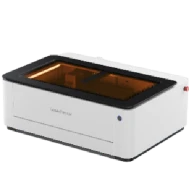
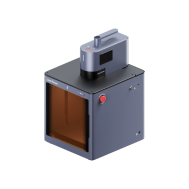
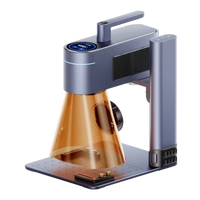
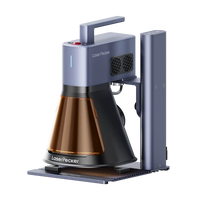
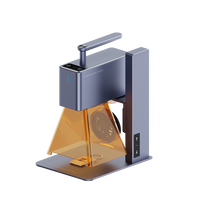
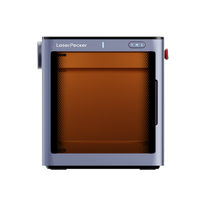
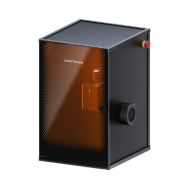
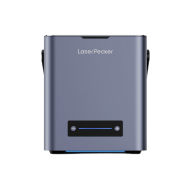
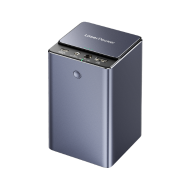
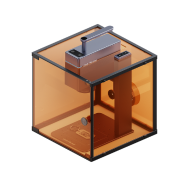
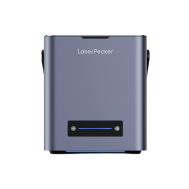
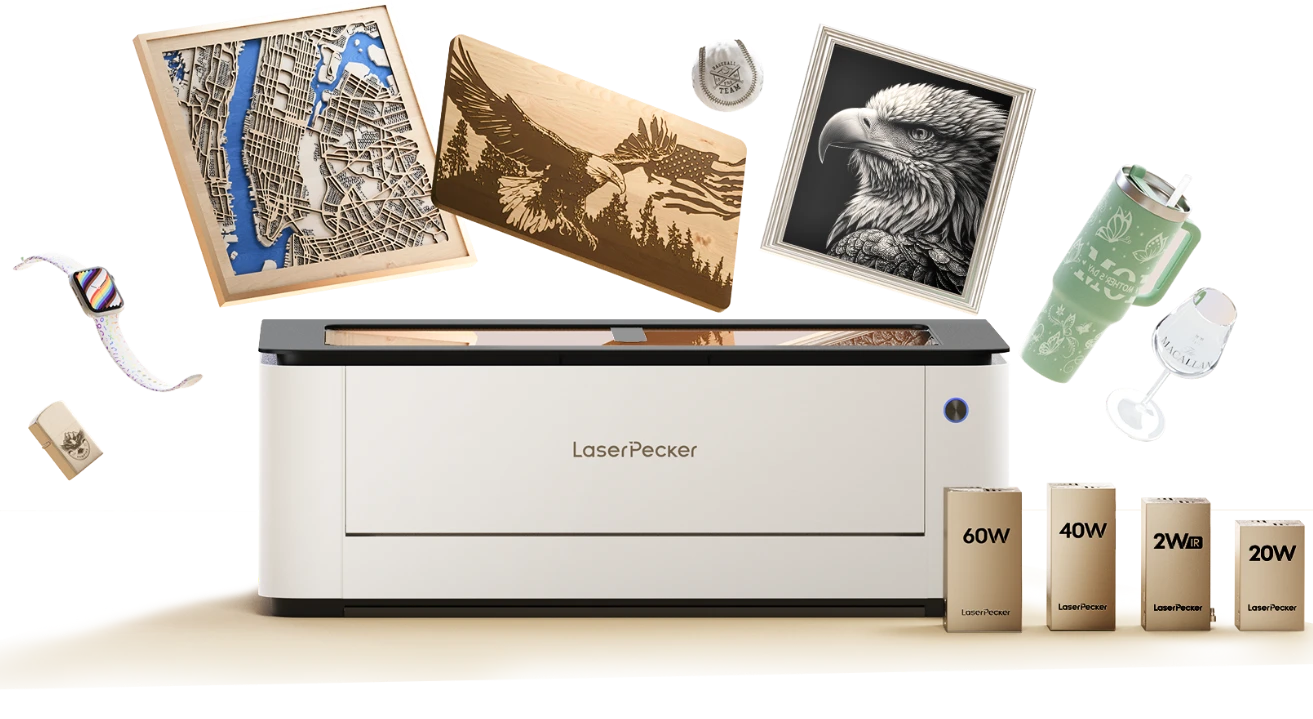
Pour les utilisateurs à domicile dans l’UE ou les projets de petite envergure, des machines compactes telles que LP5, LP4 et LX2 offrent des solutions pratiques et accessibles. Ces machines de gravure laser pour MacBook offrent :
- Utilisation facile pour les débutants
- Encombrement réduit pour les environnements de studio intérieurs
- Une solution économique pour débuter dans la gravure de l’aluminium anodisé
- Des résultats fiables pour personnaliser le capot d’un MacBook
Pour les utilisateurs qui souhaitent graver des graphismes plus grands sur toute la surface du capot du MacBook, le LX2 offre des avantages supplémentaires grâce à sa zone de travail de 500 × 305 mm, permettant une couverture de gravure plus étendue sans repositionnements répétés. Cela améliore l’efficacité du flux de travail lors de la création de visuels de marque, de motifs personnalisés ou de projets de personnalisation en série.
De plus, la certification de sécurité laser de classe 1 du LX2 le rend particulièrement adapté aux studios créatifs intérieurs, aux espaces de création éducatifs et aux ateliers partagés dans toute l’UE, où le respect des normes de sécurité d’utilisation est souvent requis.
1.4 Précautions de sécurité avant de graver un MacBook
Un MacBook étant un appareil électronique de valeur, il convient de toujours respecter les mesures de sécurité appropriées :
-
Ventilation adéquate
La gravure laser sur de l’aluminium anodisé peut produire des fumées. Travaillez dans un espace bien ventilé ou utilisez un système de purification de l’air. -
Équipement de protection
Portez des lunettes de protection laser appropriées afin de réduire le risque d’exposition des yeux. -
Testez d’abord les réglages
Effectuez toujours un test sur une pièce d’aluminium de rechange afin d’ajuster la puissance et la vitesse avant de graver votre MacBook.
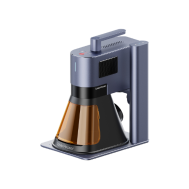
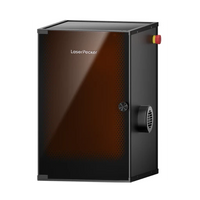
Pour une utilisation en intérieur dans l’UE, associer votre graveur à un purificateur d’air de bureau peut contribuer à éliminer les fumées et à maintenir un environnement de travail plus sûr.
Partie 2 : Pourquoi utiliser un laser pour graver un MacBook ?
La gravure laser est devenue une méthode privilégiée pour personnaliser les MacBook en Europe. Contrairement aux autocollants, aux skins ou aux décalcomanies imprimées, qui peuvent se décolorer ou se décoller, la gravure laser crée un motif permanent intégré à la surface en aluminium du MacBook.
Pour les utilisateurs de l’UE, cela fait de la gravure laser une solution pratique pour la personnalisation et l’image de marque professionnelle.
① Précision et détails
La technologie laser permet d’obtenir des détails extrêmement fins, ce qui rend possible la gravure de textes simples, de logos détaillés ou de visuels complexes. Les résultats sont nets et homogènes sur toute la surface.
Pour les amateurs et les entreprises de l’UE, ce niveau de précision est particulièrement précieux pour graver des éléments de marque ou des motifs détaillés.

② Durabilité
Comme la gravure laser modifie la surface en aluminium anodisé, le motif devient très résistant aux rayures et à l’usure quotidienne. Cette durabilité la rend idéale pour une personnalisation durable ou l’identification d’une entreprise.
③ Apparence professionnelle
La gravure laser offre une finition élégante et haut de gamme qui s’accorde avec le design minimaliste du MacBook. Qu’il s’agisse d’une personnalisation personnelle ou d’une identité visuelle d’entreprise, le résultat final est net et professionnel.
De nombreuses organisations de l’UE choisissent des MacBook gravés au laser pour les appareils de leurs employés, les cadeaux promotionnels ou les équipements arborant leur marque.
④ Polyvalence
La gravure laser convient aux particuliers, aux entreprises et aux organisations. Vous pouvez personnaliser votre MacBook avec :
- Noms ou initiales
- Citations motivantes
- Illustrations personnalisées
- Logos d’entreprise
- Identité visuelle pour les promotions ou les événements
Cette polyvalence la rend adaptée aussi bien à un usage personnel que commercial.
⑤ Personnalisation écologique
Comparée à la gravure chimique ou aux méthodes à base de peinture, la gravure laser est un procédé plus propre et plus respectueux de l’environnement. Elle ne nécessite ni encres, ni solvants, ni adhésifs, ce qui contribue à réduire les déchets et l’impact environnemental.
Pour les espaces de travail intérieurs dans l’UE, l’utilisation d’un système de ventilation ou d’un purificateur d’air de bureau peut améliorer davantage la sécurité pendant la gravure.
Partie 3 : Étude de cas — Comment graver un MacBook au laser en 5 étapes 💡
Liste de contrôle pour préparer la gravure laser d’un MacBook :
- Matériau à graver : MacBook
- Machine de gravure : graveur laser à fibre
- Design de gravure : nom, logo, images, motifs, etc.
Peut-on graver un MacBook ? Oui. Dans toute l’UE, de nombreux utilisateurs réalisent rapidement la gravure laser d’un MacBook en suivant un processus simple, étape par étape.
Étape 1 : Préparer votre design
Commencez par le visuel, le logo ou le texte que vous souhaitez graver. Les fichiers vectoriels (SVG ou AI) offrent les résultats les plus nets, bien que la plupart des logiciels de gravure prennent également en charge les images matricielles.
Les motifs à fort contraste et aux lignes fines donnent les meilleurs résultats sur l’aluminium anodisé, produisant des gravures nettes et homogènes.
Étape 2 : Choisir la machine de gravure laser adaptée à la gravure d’un MacBook
Nous recommandons le LaserPecker 4 (LP4), équipé d’un laser à diode de 10 W et 450 nm, d’un laser infrarouge de 2 W et 1 064 nm, et offrant des vitesses allant jusqu’à 4 000 mm/s. Cette configuration assure des performances fiables pour la gravure sur aluminium.
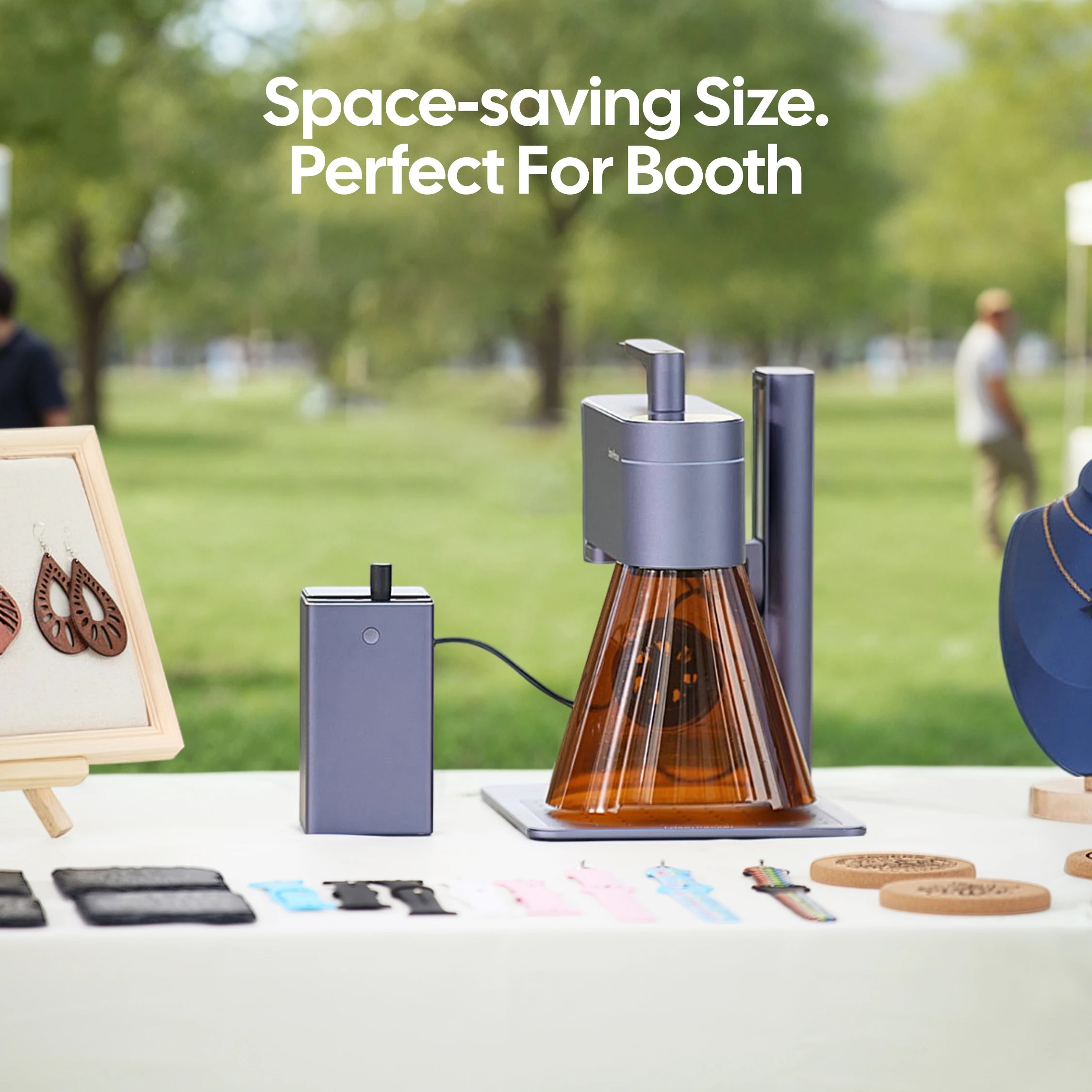
Pour les amateurs et les petits ateliers de l’UE, les graveurs laser compacts à double laser offrent polyvalence et facilité d’utilisation.
Étape 3 : Positionnez et fixez le MacBook
Nettoyez la surface en aluminium du MacBook avec un chiffon en microfibre pour éliminer la poussière et les traces de gras. Posez l’appareil à plat et fixez-le fermement dans la zone de gravure afin d’éviter tout mouvement.
Un positionnement stable contribue à garantir des résultats de gravure précis.
Étape 4 : Configurez la machine de gravure laser pour MacBook
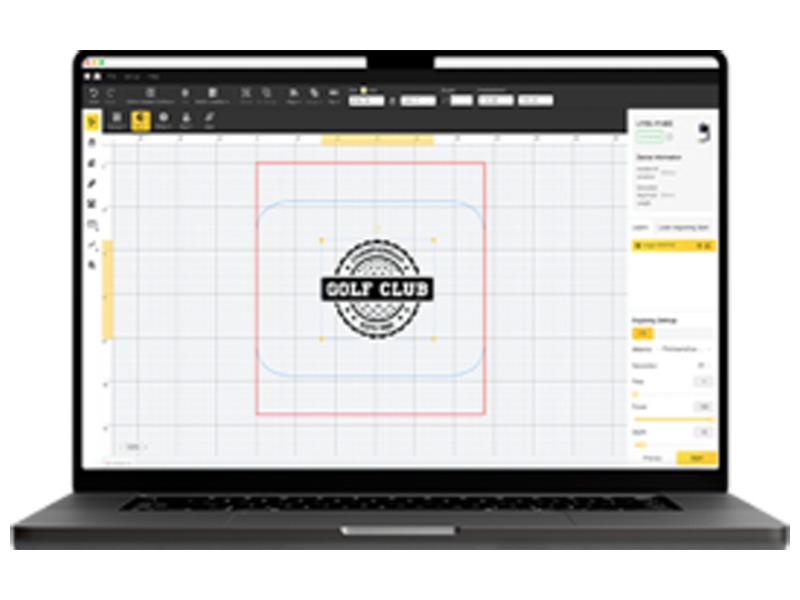
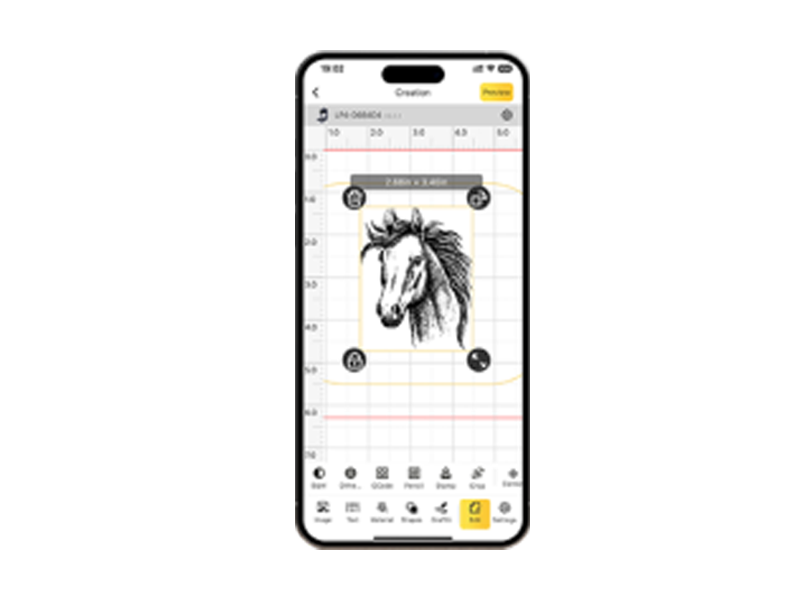
Utilisez l’application/logiciel de conception graphique LaserPecker ou des outils tiers comme Photoshop pour créer ou importer votre design. Réfléchissez attentivement à la mise en page, à l’échelle et au positionnement.
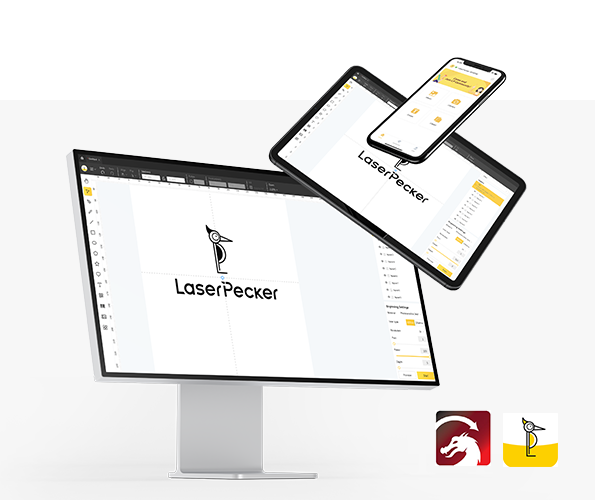
Vous pouvez également consulter LaserPecker CraftZone pour trouver de l’inspiration ou télécharger des fichiers de design.
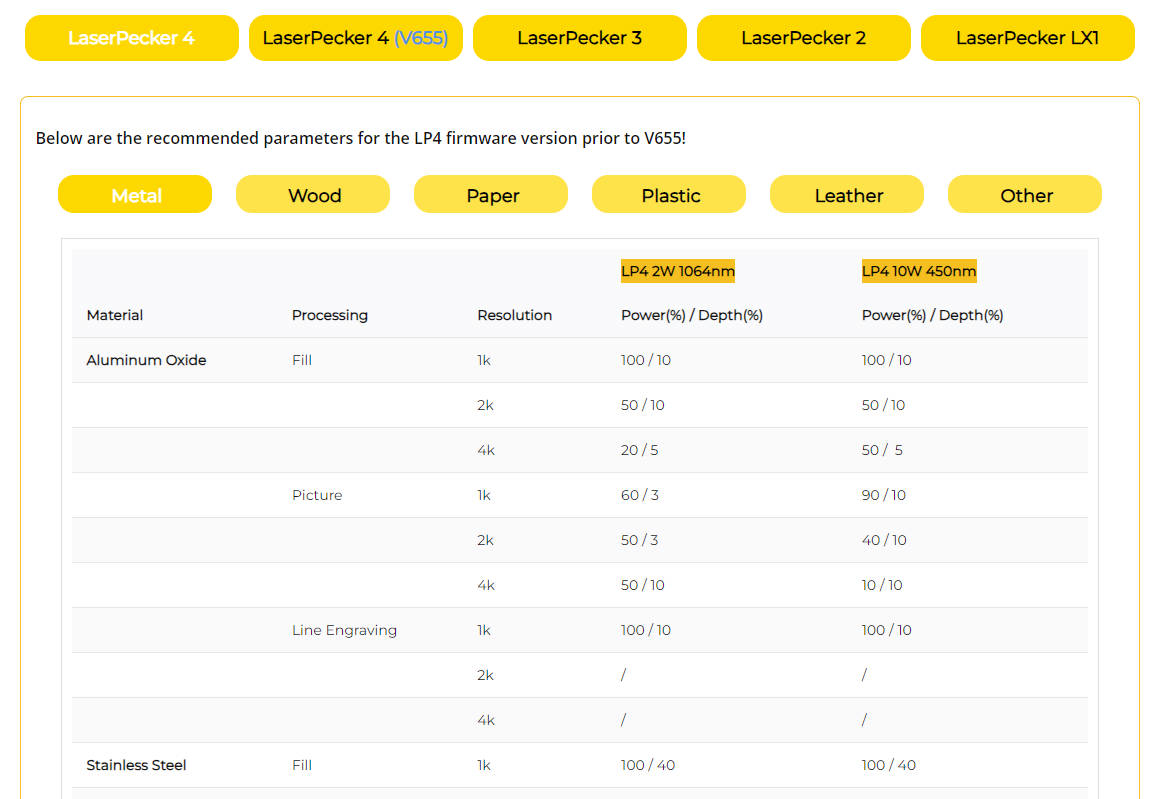
Pour obtenir des résultats optimaux, utilisez les paramètres recommandés de gravure et de découpe LaserPecker :
- Laser infrarouge de 2 W à 1064 nm
- Résolution : 4K
- Puissance : 60%
- Profondeur : 1%
- Passage : 1
Lorsque vous utilisez le graveur, portez des lunettes de protection ou utilisez une protection contre le laser.

Pendant la gravure, des fumées peuvent être produites. Dans les espaces de travail intérieurs de l’UE, l’utilisation d’un masque ou d’un purificateur d’air contribue à maintenir une qualité de l’air plus sûre.
Étape 5 : Commencez dès maintenant à graver votre MacBook au laser
Vérifiez attentivement tous les réglages avant de commencer. Appuyez ensuite sur le bouton de démarrage et surveillez le processus de gravure.
Après la gravure :
- Laissez la surface refroidir
- Essuyez délicatement avec un chiffon doux
- Inspectez les détails gravés
Votre MacBook est désormais personnalisé de façon permanente grâce à une gravure laser professionnelle.

Partie 4 : Idées créatives de gravure laser sur MacBook
La gravure laser offre d’innombrables possibilités de personnalisation pour votre MacBook. Des designs discrets aux graphismes audacieux, les idées suivantes sont populaires dans toute l’UE, tant auprès des particuliers que pour les applications professionnelles.
1. Gravures textuelles minimalistes
Gravez votre nom, vos initiales ou une citation motivante dans une police épurée pour un rendu soigné et professionnel. Les designs textuels minimalistes s’accordent avec la finition en aluminium du MacBook tout en préservant l’élégance de l’appareil.
2. Œuvres personnalisées
Des motifs complexes, des mandalas ou des illustrations abstraites peuvent faire ressortir votre MacBook. Les œuvres détaillées fonctionnent particulièrement bien sur l’aluminium anodisé avec un graveur laser à fibre.
3. Logos et image de marque
Cette option est idéale pour les entreprises et les organisations. De nombreuses entreprises de l’UE gravent des logos sur leurs appareils professionnels, leurs cadeaux promotionnels ou le matériel de leurs équipes afin de renforcer leur identité de marque.
4. Icônes de la culture populaire
Affichez vos personnages de films préférés, des graphismes de jeux vidéo ou des motifs inspirés des anime. C’est un choix populaire auprès des étudiants, des designers et des professionnels de la création.
5. Gravures fonctionnelles
Vous pouvez également graver des éléments pratiques, tels que des coordonnées ou des codes QR. Cela facilite l’identification rapide du MacBook en cas d’égarement, notamment dans les espaces de travail partagés.
Partie 5 : FAQ — Questions fréquentes sur la gravure laser des MacBook
Q1. La gravure laser annule-t-elle la garantie de mon MacBook ?
Dans la plupart des cas, oui. Comme la gravure modifie la surface du MacBook, la garantie d’Apple peut ne pas couvrir la zone gravée. Les utilisateurs de l’UE doivent vérifier les conditions de garantie avant de procéder à la gravure.
Q2. La gravure laser peut-elle nuire au fonctionnement de mon MacBook ?
Non, lorsqu’elle est réalisée correctement. La gravure laser n’affecte que la surface en aluminium anodisé et n’interfère pas avec les composants internes.
Q3. Quel type de laser convient le mieux à la gravure d’un MacBook ?
Un laser à fibre est généralement le meilleur choix pour l’aluminium anodisé, car il offre des résultats de gravure précis et durables.
Q4. Puis-je retirer ou annuler une gravure laser ?
La gravure laser est permanente. La seule façon de la modifier consiste à refaire la finition ou à remplacer le boîtier extérieur du MacBook.
Q5. Combien de temps prend la gravure laser d’un MacBook ?
La gravure prend généralement entre 1 et 5 minutes, selon la complexité du motif.
Q6. Puis-je graver des logos sur plusieurs MacBook à des fins professionnelles ?
Oui. De nombreuses entreprises de l’UE utilisent la gravure laser pour apposer des logos sur les appareils de leurs employés, les cadeaux promotionnels ou le matériel de l’entreprise. La gravure laser garantit une image de marque cohérente sur plusieurs MacBook.
Conclusion
La gravure laser d’un MacBook va au-delà de la décoration : elle vous permet d’exprimer votre personnalité tout en augmentant la valeur de votre appareil. Que vous graviez des initiales pour une apparence professionnelle, ajoutiez le logo d’une entreprise à des fins d’image de marque ou créiez une œuvre détaillée pour laisser libre cours à votre créativité, les résultats sont précis, durables et distinctifs.
Avec le matériel adéquat, une préparation appropriée et des idées créatives, vous pouvez transformer un MacBook standard en un appareil personnalisé qui reflète votre identité. Dans toute l’UE, la gravure laser est largement utilisée à des fins de personnalisation individuelle et dans le cadre d’applications professionnelles.
Comme la gravure est permanente, votre motif reste sur le MacBook pendant toute sa durée de vie. Cette durabilité garantit une finition de haute qualité qui résiste dans le temps.
Si vous souhaitez donner à votre MacBook une apparence unique et reconnaissable, la gravure laser est un choix efficace et professionnel.