





























Les cartes sont bien plus que des outils de navigation — elles préservent des souvenirs, représentent une identité et servent de pièces de décoration élégantes pour les maisons, les studios, les espaces éducatifs ou les cadeaux personnalisés.
Grâce à la technologie de découpe laser, vous pouvez convertir des plans de ville numériques, des tracés régionaux ou des données topographiques en œuvres d'art détaillées et multicouches. Qu'il s'agisse d'un plan des rues de Paris, d'une disposition des quartiers de Berlin ou de la silhouette d'une métropole européenne, la précision du laser permet de reproduire chaque contour et chaque détail avec exactitude.
Dans ce guide, nous explorerons les meilleurs matériaux pour les projets de cartes découpées au laser, nous fournirons un flux de travail étape par étape pour créer votre propre art cartographique, et nous expliquerons pourquoi le LaserPecker LP5 est une solution adaptée aux amateurs, aux designers et aux petites entreprises à travers l'Europe.

Dans cet article :
- Partie 1 : Outils et matériaux nécessaires pour découper une carte au laser
- Partie 2 : Guide étape par étape pour découper une carte au laser
- Partie 3 : Découpeur laser recommandé pour les projets de cartes
- Partie 4 : Conseils pratiques pour la conception de cartes au laser
- Partie 5 : FAQ sur la découpe de cartes au laser
Partie 1 : Outils et matériaux nécessaires pour découper une carte au laser
Assurez-vous d'avoir tous vos outils et matériaux prêts avant de commencer. De cette façon, tout devrait se dérouler sans accroc. Voici la liste de ce dont vous aurez besoin :
Un découpeur/graveur laser :
Assurez-vous qu'il soit capable de réaliser un travail de précision et des découpes nettes.
Fichier de la carte :
Votre carte doit être préparée sous forme de fichier vectoriel (format SVG, DXF ou AI). Les fichiers vectoriels permettent au système laser de suivre des tracés exacts, ce qui est essentiel pour les plans de ville détaillés ou les conceptions de limites régionales.
Matériau :
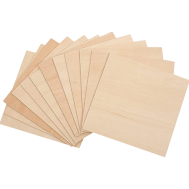
À travers l'Europe, les matériaux populaires incluent le bois de tilleul, le contreplaqué de bouleau, les panneaux MDF et les feuilles d'acrylique coulé. Le carton est idéal pour tester des prototypes avant de découper le design final. Ces matériaux conviennent aussi bien aux couches structurelles qu'aux éléments décoratifs de la carte.
Partie 2 : Guide étape par étape pour découper une carte au laser
Créer une carte multicouche découpée au laser peut sembler complexe, mais en suivant un flux de travail structuré, le processus devient gérable et précis.
Étape 1 : Trouvez l'image de votre carte
Commencez par choisir une carte qui a une signification personnelle — votre ville natale, une destination de vacances préférée ou même un plan détaillé d'une ville britannique. Vous pouvez trouver des images sur Google Maps ou sur une plateforme de cartographie en libre accès. Assurez-vous que la résolution est suffisamment élevée pour que les petites routes et les limites restent claires lors du traçage.
Étape 2 : Convertissez l'image en fichier vectoriel
Importez l'image dans Inkscape ou un logiciel d'édition vectorielle similaire. Utilisez la fonction "Vectoriser le bitmap" pour convertir les fichiers PNG ou JPG au format SVG ou DXF. Après le traçage, supprimez la couche matricielle d'origine et ne conservez que les tracés vectoriels nets.
Pour une carte multicouche, vous pouvez la séparer en quatre couches :
- Couche de base – représente le fond marin ou aquatique.
- Couche terrestre – comprend les lignes de côte et les formes principales.
- Couche des rues – montre les rues gravées ou les détails plus fins.
- Couche du cadre – ajoute des bordures, des titres ou des contours décoratifs.
Étape 3 : Ajustez et nettoyez votre conception
Supprimez les nœuds inutiles, les tracés en double ou les lignes parasites. Simplifiez les zones trop complexes qui pourraient provoquer des brûlures ou un temps de découpe excessif. Confirmez que chaque couche s'aligne avec précision. Définissez clairement les tracés de gravure et de découpe dans les paramètres de votre logiciel laser.
Étape 4 : Découpe et gravure au laser
Importez les couches séparées dans votre logiciel laser. Un ordre de découpe typique est le suivant :
- Gravez d'abord les rues : faible puissance, vitesse élevée pour marquer les détails de surface.
- Découpez les contours terrestres : puissance élevée, vitesse plus lente pour des coupes nettes.
- Découpez le cadre en dernier : cela permet d'assembler proprement toutes vos couches.
Étape 5 : Assemblez les couches
Organisez soigneusement les pièces découpées : base (eau), terre, rues et cadre. Appliquez la colle uniformément — un petit pinceau aide pour les coins et les sections étroites. Empilez-les dans l'ordre : la base au fond, la terre par-dessus, puis la couche des rues gravées, et enfin le cadre.
Étape 6 : Ajoutez les touches finales
Laissez l'adhésif sécher complètement. Poncez légèrement les bords rugueux si nécessaire. Vous pouvez appliquer un vernis transparent, une teinture ou de la peinture pour accentuer le contraste et protéger la surface. Une fois terminée, votre carte découpée au laser est prête à être exposée ou offerte — une pièce personnalisée chargée de sens.
Partie 3 : Découpeur laser recommandé pour les projets de cartes
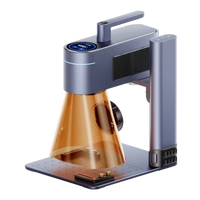
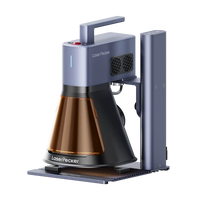
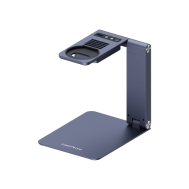
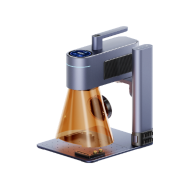
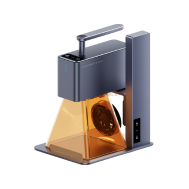
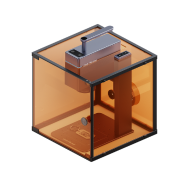
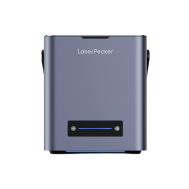
Lors de la création de cartes multicouches hautement détaillées, la précision, la vitesse et la flexibilité des matériaux sont essentielles. Le LaserPecker LP5 est une option de choix grâce à son système à double laser, offrant une plus grande polyvalence pour la découpe et la gravure fine.

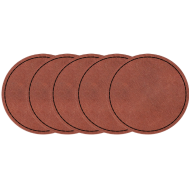
Le laser à diode de 20W fournit une puissance suffisante pour découper des matériaux tels que le bois de tilleul ou le contreplaqué (jusqu'à 20 mm, selon le type de matériau et les réglages). Il convient également à la gravure sur bois, acrylique et cuir — tous des choix populaires pour les projets de cartes multicouches.
Le laser à fibre de 20W est conçu pour la gravure de haute précision. Il est particulièrement performant pour produire des textes fins, de petites coordonnées géographiques ou des détails de lignes complexes qui exigent une définition nette.
Caractéristiques supplémentaires du LP5
Caractéristique 1 : Vitesse et précision
Avec des vitesses de gravure allant jusqu'à 10 000 mm/s, les couches de cartes complexes peuvent être traitées efficacement tout en maintenant une reproduction nette des détails.
Caractéristique 2 : Polyvalence de gravure et de découpe
Le LP5 prend en charge les techniques de gravure par couches, permettant des variations de profondeur et des effets de carte de style 3D subtils.
Caractéristique 3 : Zone de travail étendue
Avec l'extension coulissante (slide extension), la zone de travail s'étend à 160 × 300 mm, ce qui la rend adaptée aux conceptions de cartes de taille moyenne à grande.
Caractéristique 4 : Capacité rotative
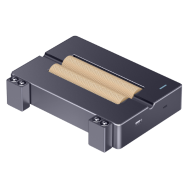
Les accessoires rotatifs optionnels permettent de graver sur des objets cylindriques, comme l'ajout de coordonnées cartographiques sur des gobelets ou des pièces décoratives.
Caractéristique 5 : Compatibilité logicielle
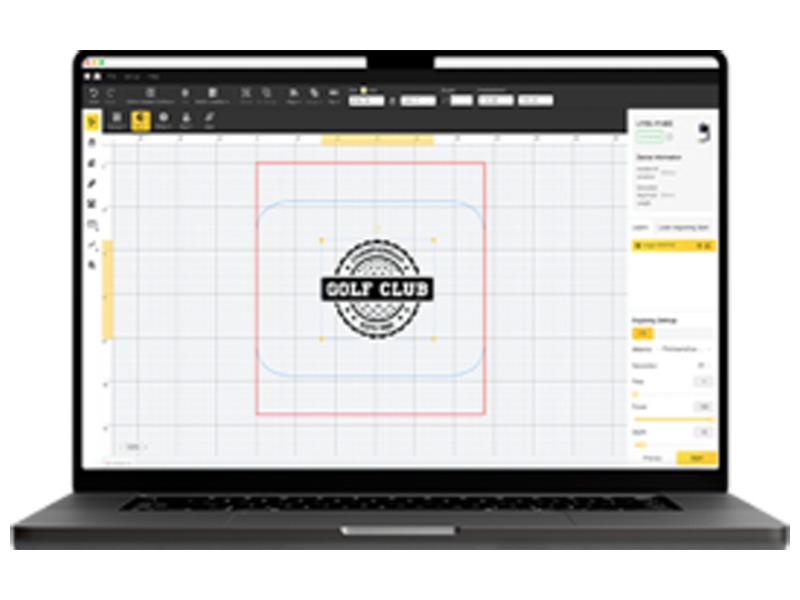
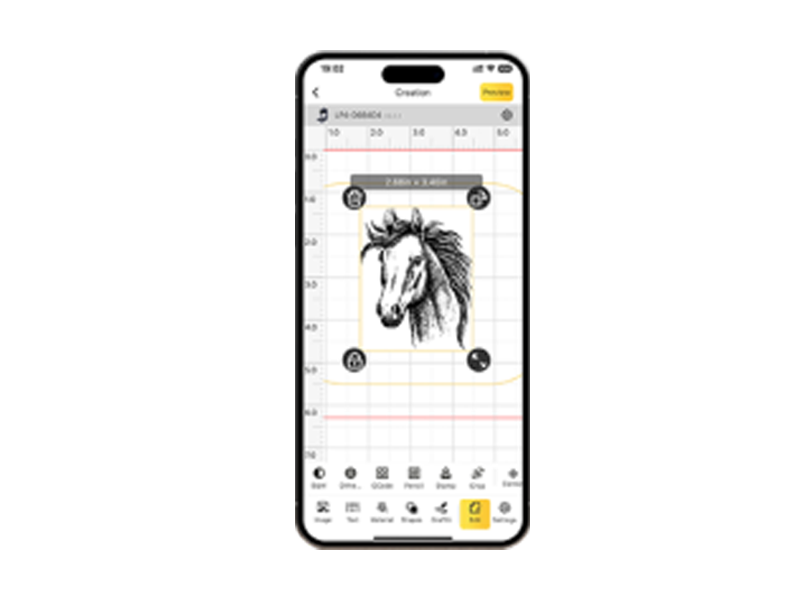
Le système fonctionne avec LightBurn et LaserPecker Design Space, favorisant une intégration flexible du flux de travail.
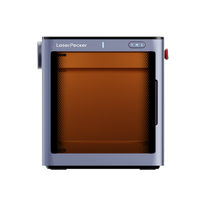
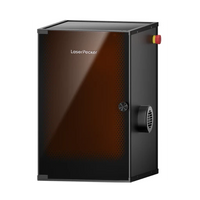
Utilisation sûre en intérieur : L'enceinte de sécurité fait du LP5 un laser de classe 1, ce qui permet de l'utiliser en toute sécurité dans votre maison ou votre atelier.
Grâce à ces atouts, le LP5 vous aide à découper des formes précises et à graver des détails cartographiques fins de manière rapide et prévisible.
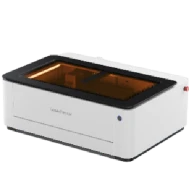
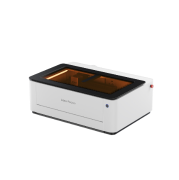
Alternativement, vous pouvez choisir le LaserPecker LX2. Avec ses options de laser à diode puissantes de 20W/40W/60W, il est conçu pour découper des matériaux plus larges sans effort — ce qui en fait le choix ultime pour les projets de découpe de cartes à grande échelle.
Partie 4 : Conseils pratiques pour la conception de cartes au laser
Voici comment donner le meilleur aspect possible à votre carte découpée au laser :
Commencez par des mises en page simples
Débutez avec des contours géographiques larges tels que des pays, des régions ou des lacs. Les compositions simples vous permettent d'évaluer la profondeur de coupe, la qualité des bords et le contraste de gravure avant de passer à des plans de ville denses avec des réseaux routiers complexes.
Appliquez une construction par couches
Séparer les éléments de conception en couches individuelles — comme les zones aquatiques, les limites terrestres, les rues et les cadres — accentue la profondeur dimensionnelle. L'empilement des couches crée un panneau cartographique structuré et visuellement dynamique.
Testez différents matériaux
Le bois offre une apparence naturelle et classique, tandis que l'acrylique donne un aspect moderne et architectural. Le carton est idéal pour les essais et la planification structurelle. Comparer les matériaux aide à déterminer quelle surface complète le mieux votre style de design prévu.
Maintenez l'équipement et les matériaux propres
L'accumulation de poussière peut affecter la clarté de la gravure et la précision de la coupe. Nettoyez la surface du matériau avant le traitement et entretenez la lentille laser conformément aux recommandations du fabricant.
Expérimentez les finitions de surface
Appliquez des teintures, de la peinture ou des revêtements protecteurs sur les cartes en bois pour améliorer le contraste et la durabilité. Les designs en acrylique peuvent intégrer un rétroéclairage pour un impact visuel accru. Le montage de couches de carton sur des fonds contrastés peut également améliorer la qualité de la présentation.
Partie 5 : FAQ sur la découpe de cartes au laser
Q1. Quels sont les meilleurs matériaux pour les cartes découpées au laser ?
Le bois reste le matériau le plus utilisé en Europe en raison de sa stabilité et de la clarté de sa gravure. Le bois de tilleul, le contreplaqué de bouleau et les panneaux MDF sont des choix courants. L'acrylique offre une esthétique soignée et architecturale adaptée aux intérieurs modernes. Le carton est utile pour le prototypage, tandis que le métal offre une grande durabilité pour les installations de style industriel.
Q2. Ai-je besoin de compétences professionnelles en design pour créer un fichier de carte ?
Non. Divers outils en ligne et plateformes en libre accès permettent de convertir facilement des données cartographiques en formats vectoriels. Une connaissance de base de l'ajustement des tracés et de la simplification des chemins dans un logiciel vectoriel est suffisante pour la plupart des projets.
Q3. Les détails urbains fins peuvent-ils être gravés avec précision ?
Oui, à condition que le système laser offre une haute résolution et une sortie stable. Les machines de précision peuvent reproduire efficacement les rues étroites, les courbes de niveau et les coordonnées. Une préparation vectorielle propre est essentielle pour éviter les brûlures excessives ou les doublons de tracés.
Q4. Quelle est la taille maximale de carte que je peux produire ?
La taille maximale dépend de la zone de travail de votre laser. De nombreux systèmes de bureau sont conçus pour des panneaux décoratifs compacts. Avec une extension coulissante LP5, l'espace de travail peut atteindre 160 × 300 mm, ce qui convient aux designs de taille moyenne. Pour des projets plus vastes, des machines comme le LaserPecker LX2 offrent une zone de travail considérablement agrandie de 500 × 305 mm, permettant de réaliser de plus grandes cartes en une seule pièce. Des modules coulissants étendus et l'assemblage de plusieurs panneaux permettent également de créer des installations murales surdimensionnées.
Q5. Existe-t-il des restrictions de droits d'auteur lors de l'utilisation de données cartographiques européennes ?
Oui. De nombreux ensembles de données cartographiques européennes sont protégés par les lois sur la propriété intellectuelle. Si vous avez l'intention de vendre des cartes découpées au laser, vérifiez les droits d'utilisation des données provenant d'agences nationales de cartographie ou de plateformes en ligne.
Q6. Les fumées laser sont-elles réglementées dans les ateliers intérieurs de l'UE ?
Les réglementations sur la qualité de l'air intérieur varient selon les pays, mais des systèmes de ventilation ou de filtration appropriés sont fortement recommandés lors de l'utilisation d'un équipement laser dans des environnements résidentiels ou commerciaux.
Conclusion
Les cartes découpées au laser fusionnent la conception numérique et la fabrication de précision, offrant des opportunités d'expression créative et de production commerciale à travers l'Europe.
En choisissant des matériaux adaptés, en respectant les réglementations en vigueur et en utilisant le LP5, les créateurs et les petites entreprises peuvent produire des décorations murales, des cadeaux personnalisés et des pièces d'exposition architecturales. Qu'il s'agisse de produire des plans de ville détaillés ou des designs régionaux multicouches, la technologie laser permet d'obtenir des résultats constants et de haute qualité lorsqu'elle est utilisée de manière sûre et responsable. Pour les projets de grand format, le LaserPecker LX2 est également une option robuste, sa zone de travail étendue étant parfaitement adaptée à la découpe de grandes cartes en un seul passage.